


How to add BON Loyalty extension to Your EComposer
Learn how to display loyalty program extensions to enhance customer engagement and promote your program on customized themes by Ecomposer
ご注意:本連携機能はBasicプラン以上でご利用いただけます。詳しくは料金プランをご確認ください。
はじめに
Looking for an effective way to promote your loyalty program with pre-built theme collections from EComposer Landing Page Builder?
Activating the integration BON x EComposer enables you to drag-and-drop BON’s elements directly onto any page – home, product, or a custom landing page – without touching a single line of code. This keeps your loyalty program visible everywhere shoppers browse, not just on the default loyalty pop-up, which helps drive more sign-ups and repeat engagement.
This guide walks through connecting the two apps and configuring exactly what the widget shows.
Before you start
- Your store must be on the Basic plan and higher.
- EComposer must already be installed on your Shopify store.
- You have activated these followings to enable BON extensions being live on your theme: Loyalty Page, widget and program status.
Step 1: Connect EComposer from your BON Loyalty admin
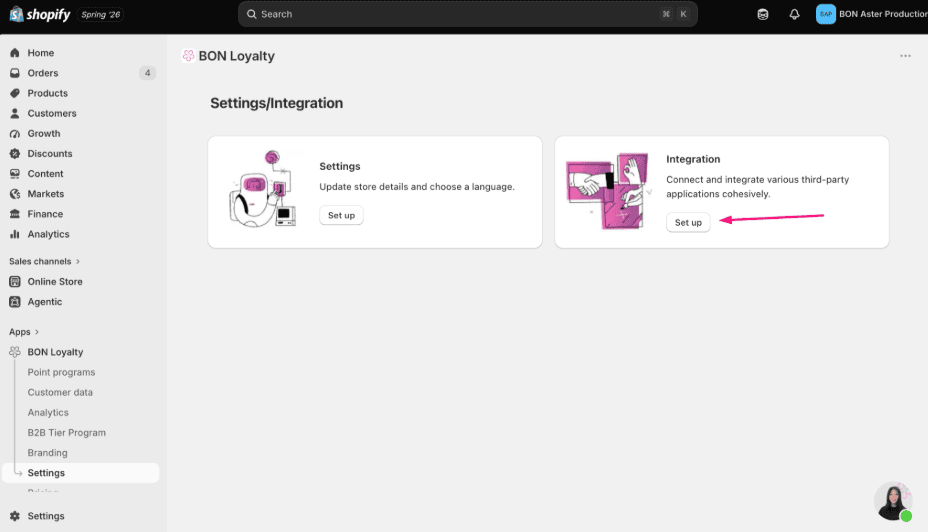
1. In the BON Loyalty app, go to Settings > Integrations.
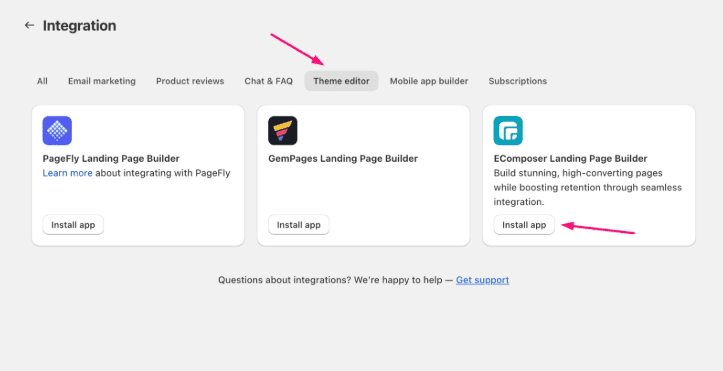
2. On the Integration page, switch to the Theme editor tab, find the EComposer:ランディングページビルダー card, and click Install app.
This opens the EComposer editor with BON Loyalty ready to be added as a block on your pages.
Step 2: Add the BON Loyalty extension inside EComposer
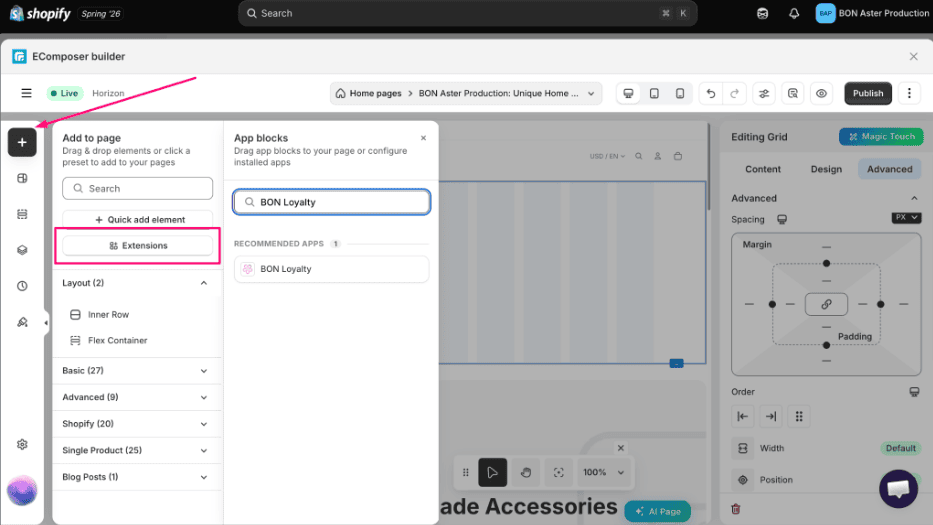
1. Inside the EComposer editor, click the + icon in the left sidebar to open Add to page, then select Extensions.
2. Search BON Loyalty – it will show up under Recommended Apps – and click it to add the block to your page.
3. The BON Loyalty block now appears under Extensions in your page’s element list. Drag it into position – most merchants place it in the header or as a floating button near the footer.
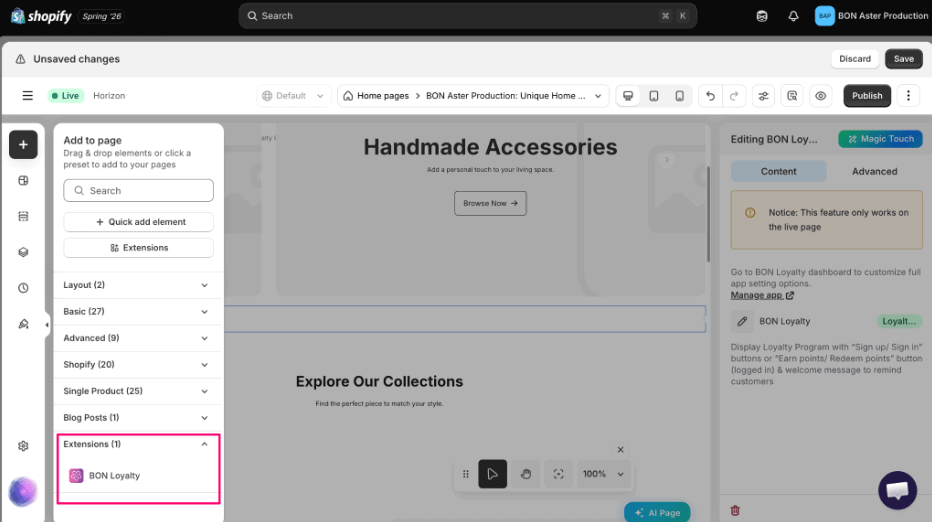
注記: EComposer’s editor canvas doesn’t fully render third-party app blocks. Click Manage app in the settings panel, or check your published/live page, to confirm how the BON widget actually looks to shoppers.
Step 3: Choose what the widget displays
With the block selected, open its Content tab in the right-hand panel. Six toggles map directly to BON Loyalty features – turn on only what’s relevant to your program.
Widget option | What shoppers see | What must be active in BON first |
|---|---|---|
ロイヤルティページヘッダー | “Sign in / Join now” for guests, or “Earn points / Redeem points” once logged in | Loyalty program turned on (Branding → Loyalty page → Status: Enabled) |
ポイント獲得ルールセクション | List of ways to earn points | At least one earning method set to Active |
ポイント利用ルールセクション | Rewards shoppers can redeem points for | At least one reward/discount offer set to Active |
VIPティアプログラムセクション | Current tier and progress to the next one | Tier settings and tier list configured and Activated |
紹介プログラム | Referral link / sharing prompt | At least one referral program Activated |
Rewards button | A floating button that opens the full BON rewards pop-up | No extra setup — available once the app is Activated |
Troubleshooting
- Widget isn’t showing on the live page – Confirm BON Loyalty is activated (Please check in BON’s Settings tab), and that the feature you enabled (earning, redeem, tier, referral) has at least one active rule.
- The widget looks empty in the EComposer editor – This is expected; third-party blocks only render fully after Save/Publish. Always check the live URL to confirm.
- Still stuck? Reach out to BON Loyalty support via in-app live chat, or contact EComposer support if the issue is specific to page layout or drag-and-drop behavior.
このガイドは役に立ちましたか?
このページの内容
Toggle