


How to add BON Loyalty extension to Your EComposer
Learn how to display loyalty program extensions to enhance customer engagement and promote your program on customized themes by Ecomposer
NOTE: The integration feature is available on the Basic plan and higher. Check out our Pricing plans for more details!
Introduction
Looking for an effective way to promote your loyalty program with pre-built theme collections from EComposer Landing Page Builder?
Activating the integration BON x EComposer enables you to drag-and-drop BON’s elements directly onto any page – home, product, or a custom landing page – without touching a single line of code. This keeps your loyalty program visible everywhere shoppers browse, not just on the default loyalty pop-up, which helps drive more sign-ups and repeat engagement.
This guide walks through connecting the two apps and configuring exactly what the widget shows.
Before you start
- Your store must be on the Basic plan and higher.
- EComposer must already be installed on your Shopify store.
- You have activated these followings to enable BON extensions being live on your theme: Loyalty Page, widget and program status.
Step 1: Connect EComposer from your BON Loyalty admin
1. In the BON Loyalty app, go to Settings > Integrations.
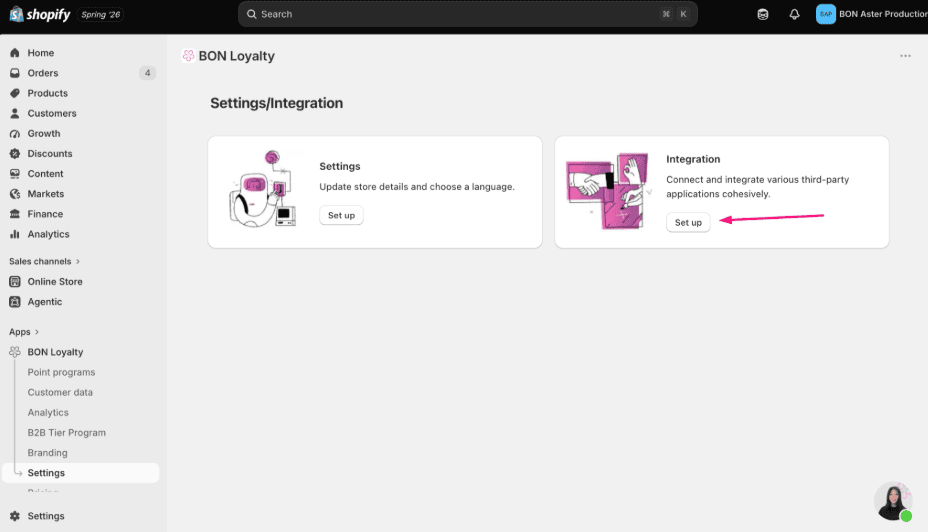
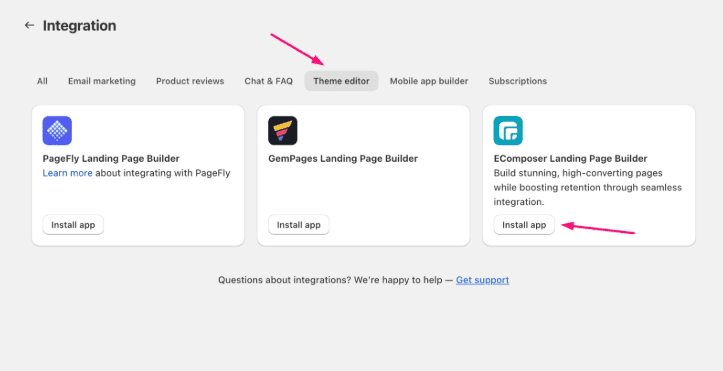
2. On the Integration page, switch to the Theme editor tab, find the EComposer Landing Page Builder card, and click Install app.
This opens the EComposer editor with BON Loyalty ready to be added as a block on your pages.
Step 2: Add the BON Loyalty extension inside EComposer
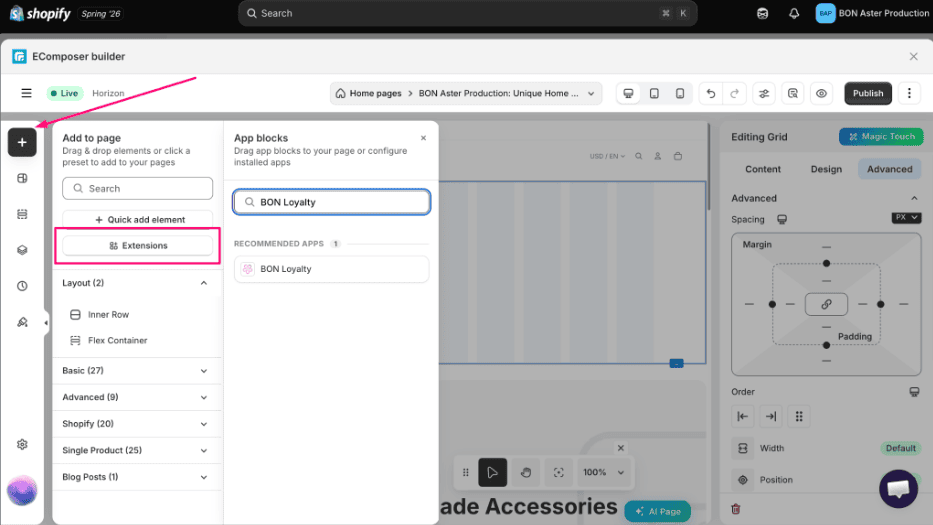
1. Inside the EComposer editor, click the + icon in the left sidebar to open Add to page, then select Extensions.
2. Search BON Loyalty – it will show up under Recommended Apps – and click it to add the block to your page.
3. The BON Loyalty block now appears under Extensions in your page’s element list. Drag it into position – most merchants place it in the header or as a floating button near the footer.
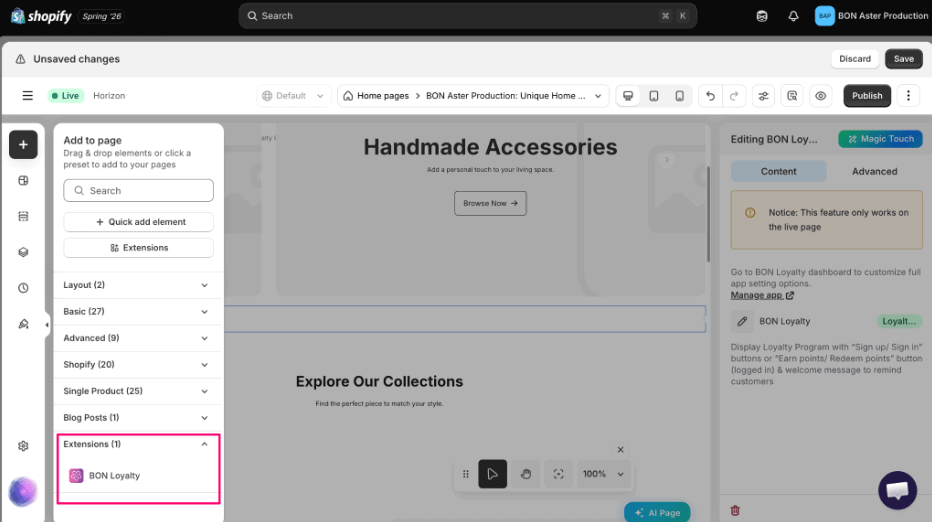
NOTE: EComposer’s editor canvas doesn’t fully render third-party app blocks. Click Manage app in the settings panel, or check your published/live page, to confirm how the BON widget actually looks to shoppers.
Step 3: Choose what the widget displays
With the block selected, open its Content tab in the right-hand panel. Six toggles map directly to BON Loyalty features – turn on only what’s relevant to your program.
Widget option | What shoppers see | What must be active in BON first |
|---|---|---|
Loyalty header | “Sign in / Join now” for guests, or “Earn points / Redeem points” once logged in | Loyalty program turned on (Branding → Loyalty page → Status: Enabled) |
Points earning | List of ways to earn points | At least one earning method set to Active |
Points redeem | Rewards shoppers can redeem points for | At least one reward/discount offer set to Active |
VIP tier | Current tier and progress to the next one | Tier settings and tier list configured and Activated |
Referral program | Referral link / sharing prompt | At least one referral program Activated |
Rewards button | A floating button that opens the full BON rewards pop-up | No extra setup — available once the app is Activated |
Troubleshooting
- Widget isn’t showing on the live page – Confirm BON Loyalty is activated (Please check in BON’s Settings tab), and that the feature you enabled (earning, redeem, tier, referral) has at least one active rule.
- The widget looks empty in the EComposer editor – This is expected; third-party blocks only render fully after Save/Publish. Always check the live URL to confirm.
- Still stuck? Reach out to BON Loyalty support via in-app live chat, or contact EComposer support if the issue is specific to page layout or drag-and-drop behavior.
Was this guide helpful?
On this page
Toggle