


Scan customer QR on BON POS UI extension
This guide walks you through using the Scan customer QR extension to find a loyalty member on your Shopify POS device in seconds
IMPORTANT NOTE: This feature is available on the Basic plan or higher. To utilize POS discounts, check out our Pricing plans for more details.
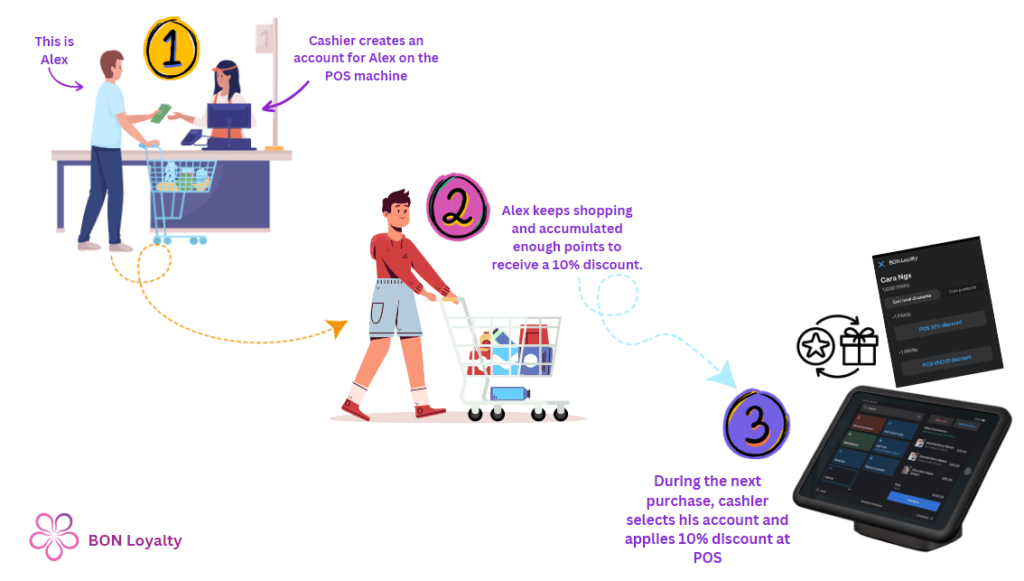
Introduction
Customers no longer need to spell out their email at the checkout counter. With the Scan customer QR extension, your staff scans the customer’s BON QR code with the POS camera and their loyalty profile opens right away.
With this extension, you can:
- Scan a customer’s QR code to see their name, email, points balance, VIP tier and available rewards.
- Search for a customer by name or email when their code can’t be scanned.
- Show a customer’s QR code again when they lose it, so you can screenshot it or print it for them.
Install the Scan customer QR extension on your POS device
To start scanning, add the extension as a tile on your POS home screen:
- Go to Shopify POS > Add tile > App.
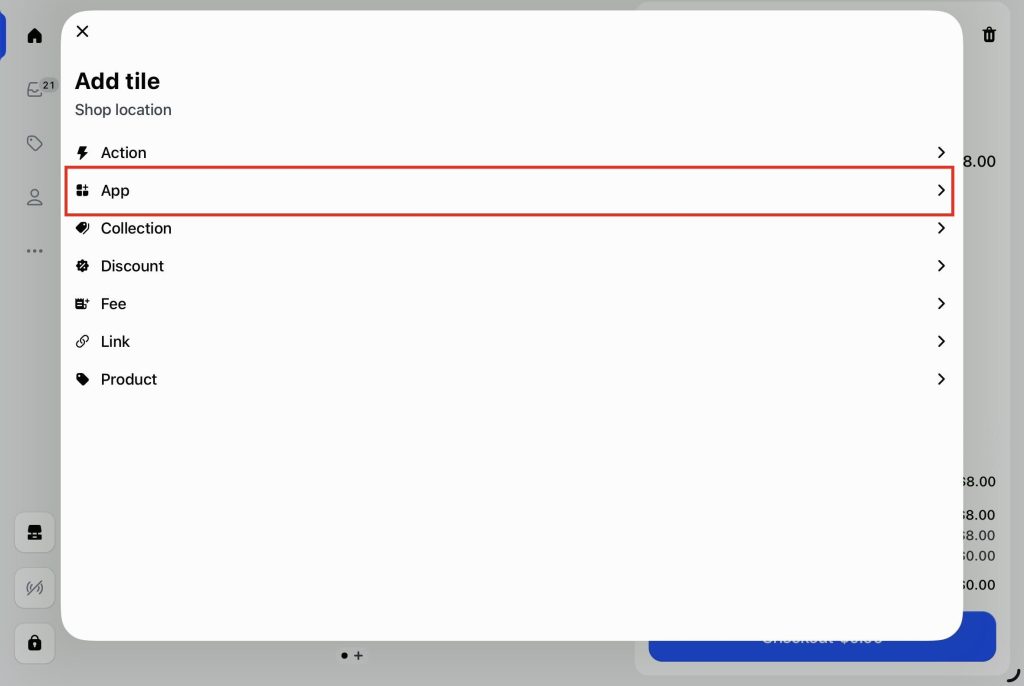
- BON Loyalty > App extensions > Scan customer QR > Add.

- Finally, the BON Loyalty ‘Scan customer QR’ will appear in your POS home tab:

NOTE: ‘Scan customer QR’ extension finds the customer, while the BON POS Extension is where you view their rewards and redeem points. Add both tiles to for the full flow. To set up BON POS Extension, see Set up the BON POS UI Extension.
Share a customer’s QR code
The first time, the customer has to be provided with the QR code.
Open BON Loyalty Scan QR code > Share customer QR > Search for the customer then select to show code.
After that, whenever the customer visits your store, they can present their code for the cashier to scan.

Scan a customer's QR code
When a loyalty member comes to the counter, follow these steps:
- Ask the customer to open their BON QR code on their phone.
- Tap the Scan customer QR tile on your POS home screen.
- Point the camera at the code, and it scans automatically.
- The customer’s profile opens right after the scan.
If the code can’t be scanned
The customer may not have their code with them, or the camera may not read it. In that case, search for them instead:
- Tap Search customer.
- Type the customer’s name or email. Matching customers appear as you type.
- Tap to open customer profile.

NOTE: If the screen says the code isn’t a BON QR code, the customer may be showing a code from another store or app. You may go to Share QR code to help them get the correct code.
View the customer's points and rewards
After a scan or a search, the customer’s profile opens in BON POS Extension. There you can see their points balance, VIP tier and the rewards in the ‘My Rewards’ tab, and redeem points as usual. See Redeem points on the POS device for the steps.
If BON POS Extension isn’t added to your POS yet, you’ll see a short Customer screen instead. It shows the customer’s name, email and points balance, with steps to add the extension:

From this screen you can:
- Tap Add [customer] to cart to attach the customer to the current order.
- Tap Scan again to scan another code.
- Follow the 3 steps on screen to add BON POS Extension, so you can see their full rewards next time.
Show a customer's QR code when they lose it
If a customer can’t find their QR code, you can show it again from your POS device. Please follow these steps:
- Search for the customer by name or email, then open their profile.
- Tap Show QR code. The Customer QR card opens with your store name, the QR code, and the customer’s name and email.
- Take a screenshot of the card and send it to the customer, or tap Print QR code to print it for them.

The customer can show the screenshot or the printed code at checkout next time, just like the original code.
NOTE: Each customer has one unique BON QR code. Showing the code again doesn’t create a new one, since the new and previous codes are the same, so the existing code will continue to work as usual.
FAQs
1. The camera doesn’t open when I tap the tile. What should I do?
Shopify POS needs permission to use the camera. Go to your device’s Settings > Shopify POS and turn on Camera, then try again.
2. The scan says no customer was found. Why?
The code is a valid BON code, but it isn’t linked to a customer in your store. The customer may have deleted their account. Use ‘Search customer’ to find them by name or email.
For more interesting tips on creating an engaging loyalty program with BON, explore our other articles!
Was this guide helpful?
On this page
Toggle