


BON x Klaviyo integration
Learn how to integrate BON with Klaviyo and how to set up marketing campaigns in Klaviyo using BON’s attributes
NOTE: This feature is available on the Starter plan and higher. Check out our Pricing plans for more details!
Introduction
Klaviyo is a widely used email marketing platform that integrates well with Shopify. The BON x Klaviyo integration allows you to leverage the power of email marketing to enhance customer loyalty, increase repeat purchases, and create a more personalized experience for your customers.
Integration requirements
Before setting up the integration, your store must meet the following requirements:
- You already have an active account on Klaviyo:
- Your Klaviyo account email must match your Shopify store’s default email.
IMPORTANT NOTE: Each Klaviyo integration can only integrate with one store. Data from that store will sync to Klaviyo, and BON cannot distinguish between stores if multiple stores share one Klaviyo account. To avoid data becoming convoluted and ensure accurate data syncing, please use a separate Klaviyo account for each store.


BON x Klaviyo integration instructions
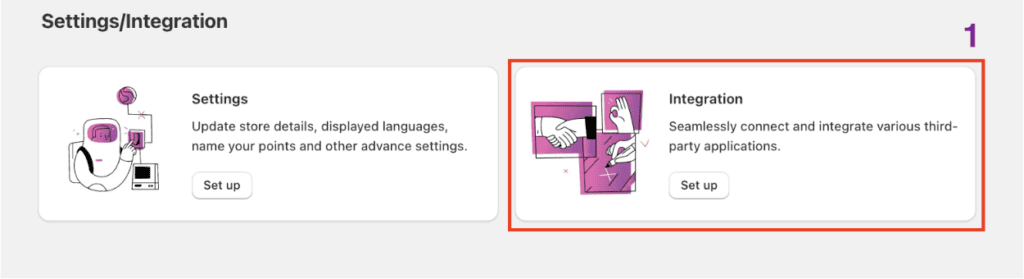
Step 1: To start your integration, go to the Settings tab in BON Loyalty > Select ‘Set up‘ for the Integrations tab.
Step 2: To integrate, please input this attribute ‘?show_integrate=true‘ in the URL > Press ‘Enter‘

- If you haven’t installed Klaviyo yet, kindly click “Install app”, you’ll be taken to Klaviyo app listings for detailed information regarding features and users’ reviews.
- If you already did, please click ‘Integrate now‘, you will be taken to Klaviyo. Here, please review the request data form, then click ‘Allow‘ to complete this integration.

Once you select ‘Allow’, all data will be synced automatically from BON Loyalty to your Klaviyo account. The synced data will include:
- Point balances
- Referral URLs
- Customers’ tiers
- Birthdays
- Customers’ status (included/excluded)
- Phone numbers
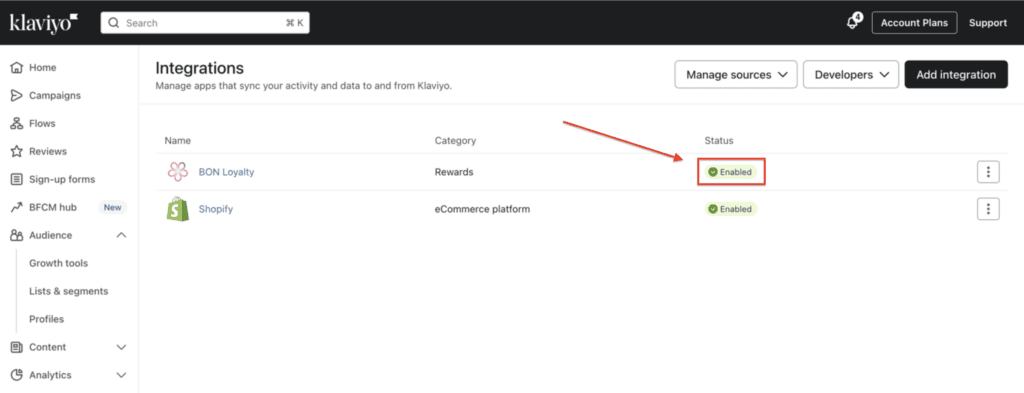
If you follow all the steps, and Klaviyo displays the status as ‘Enabled‘ on Klaviyo’s end along with the ‘Success‘ status next to the ‘Sync Data’ button on BON’s end, the integration process will be successfully completed.

How to implement BON's data in the Klaviyo app
A. Customize email contents with BON Loyalty’s attributes
After the data in BON has been synced to Klaviyo successfully, now you can use loyalty program data in your email campaign.
- Go to your Klaviyo app > Select ‘Content‘ > Create a new one or Edit an exisiting one:


- Click on any text section available > select the Person icon (Add Personalization) > scroll down to find the options to insert BON’s loyalty data.


B. Managing customer data with lists and segments
- In the Klaviyo app, you can also create and utilize lists and segments. Using data from loyalty programs such as BON can help you target specific groups of subscribers with tailored email campaigns.
- In the Audience section, choose ‘Lists & segments‘ > Select ‘Create New‘

- At the Definition segment, click ‘Select a condition‘ > Choose ‘Properties about someone‘
- Click on the Dimension drop-down menu, and scroll down to find these following data attributes from BON Loyalty.

C. Use event data to personalize email and SMS flows
With BON and Klaviyo integration, you can select BON’s events to trigger the automated email flows in Klaviyo. Learn more about How to use custom events to set up flow in Klaviyo HERE.
| Lists of triggered events: | |
|---|---|
| Actions | Events name in Klaviyo |
| Customer creates new account/signs up the loyalty program | Customer account created |
| Order is placed and fulfilled | Points Earned on Order |
| Customers exchange their points for discounts | Points Redeemed |
| Customers receive reward on their birthday | Birthday rewards |
| When customer’s tier moves to a lower one | Tier downgrade |
| 7 days before the customer’s points expire | Point expiry reminder - D7 |
| 1 day before the customer’s points expire | Point expiry reminder - D1 |
| When customers achieve a new, higher tier | New tier unlock |
| When customer completes a streak of orders | New streak unlock |
| When the referred friend's 1st order is fulfilled | Referrer notice |
| When the referred friend successfully sign up via referral link | Referred friend notice |
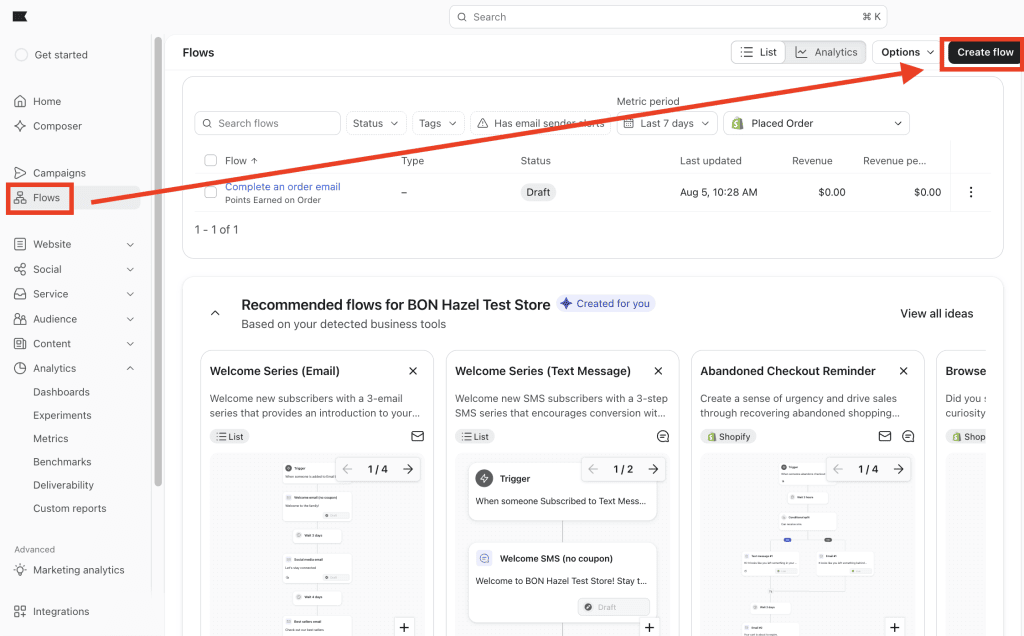
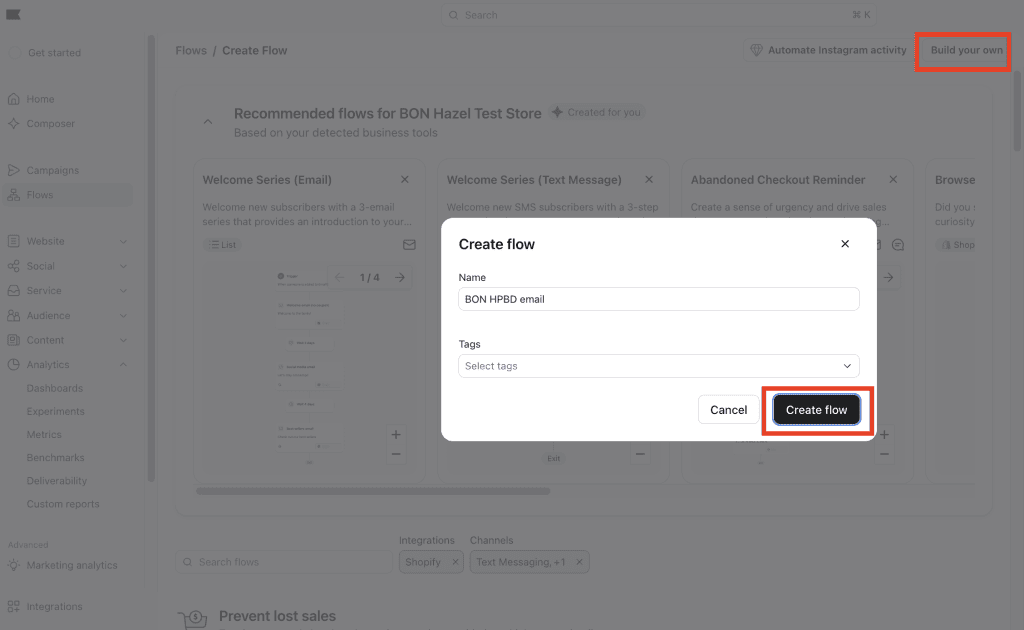
1. From your Klaviyo account, go to Flows. Click “Create flow”
2. Click “Build your own” > Enter the name of your new flow in the pop-up. Optionally, add the tags to organize your flows and click Create flow.
3. The flow builder will ask you to select a trigger. Click Your metrics > BON Loyalty. Search for the preferred BON event on the list. In this example, we will add ‘Customer account created’.

4. Click Save and confirm your trigger selection by clicking Confirm and save.
5. Drag and drop your preferred actions, timing, and logic boxes to the flow.
6. Once you finish with the flow, click Review and turn on to set your flow live or schedule it.
NOTE: If you choose to use Klaviyo to create and send your BON-related email instead of BON Notification Emails, there are a few important things to keep in mind:
1. BON events currently support order-based earning
Klaviyo currently receives BON events for earning points from orders. It does not receive a separate event for every type of earning action available in BON.
For example, when a customer earns points from completing an order, Klaviyo can receive the corresponding event and its event attributes. However, there is currently no separate Klaviyo event for every BON earning action, such as following social media, creating an account, etc.
Because of this, Klaviyo cannot completely replace all BON Earning Points notification emails at the moment.
2. Use BON event attributes to personalize your messages
You can use BON event attributes to display customer and reward information in your Klaviyo emails or SMS messages.
Since these values are sent as event properties, you can insert them using the following format: {{ event.attribute_name }} The attribute_name should match the BON attribute you want to display.
Below is the list of BON attributes currently available for use in Klaviyo, along with what each attribute represents:
| Attribute | Description |
|---|---|
| point_amount | The number of points the customer has earned or the number of points about to expire |
| first_name | The first name of the email recipient |
| earn_action | The action the customer completed to earn points, such as “Complete an order” |
| reward_name | The name of the reward the customer redeemed |
| referrer_first_name | The first name of the referrer |
| referred_friend_first_name | The first name of the referred friend |
| coupon_code | The coupon code given to the referred friend |
| tier_name | The customer’s current Tier level |
| entry_reward | The reward granted when the customer enters a Tier |
| custom_reward | The name of a custom reward offered outside of BON |
| benefit_complete_order | The point multiplier applied to orders for VIP Tier customers |
| streak_name | The name of the order streak in the Order Booster feature |
| discount_code | The discount code the customer successfully redeemed |
Example: Creating a Redeem Points email in Klaviyo
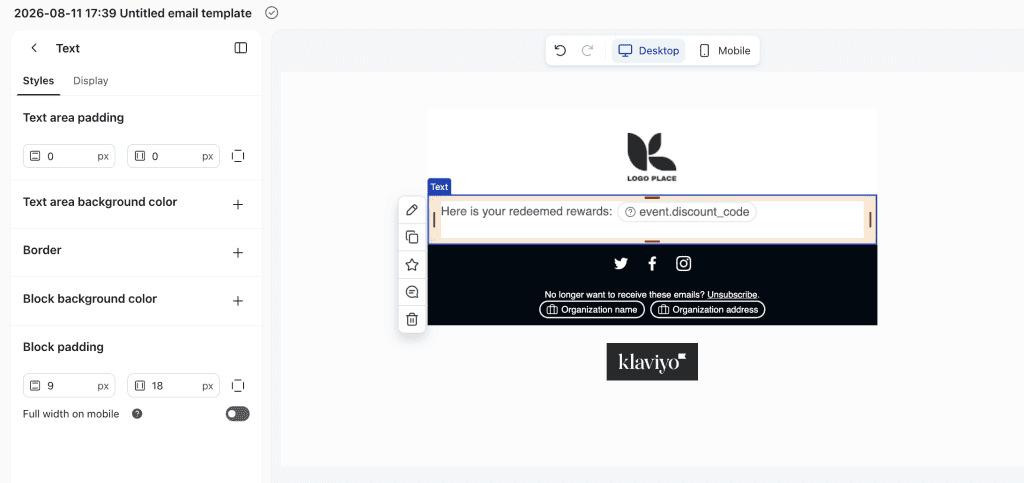
If you want to create a Redeem Points notification email in Klaviyo instead of using the BON Notification Email, you can use the discount_code attribute to display the customer’s redeemed discount code.
For example:
Here is your reward: {{ event.discount_code }}
This allows you to use BON event data dynamically in your Klaviyo email content instead of manually entering the information.
Was this guide helpful?
On this page
Toggle