BON Loyalty & GemPages Integration: Seamlessly Display Your Loyalty Program
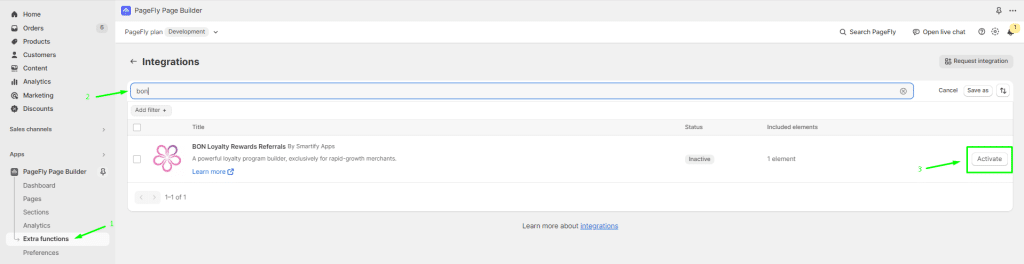
This document will provide detailed instructions on how to integrate BON Loyalty elements into your pages built with GemPages, allowing you to enhance customer experience, increase program visibility, and drive repeat purchases.
NOTE: The integration feature is available on the Basic plan and higher. Check out our Pricing plans for more details!
Introduction
This integration leverages GemPages’ flexible page builder to deeply embed BON loyalty program into your storefront, directly contributing to the following objectives:
Boost Awareness: Display loyalty features prominently on your GemPages theme using BON Loyalty blocks.
Increase User Adoption: Offer enhanced functionality and clear CTAs (Calls-to-Action) to encourage customers to join and interact with the loyalty program.
Improve Conversion: Place loyalty rewards information directly on product pages to incentivize purchases.
I. Adding Loyalty Program Elements (Template Sections)
The integration allows you to add BON Loyalty blocks directly on your GemPages-built theme (e.g., a dedicated Loyalty Page or the Home Page). These BON Loyalty blocks include:
Loyalty Header
Points Earning section
Points Redeem section
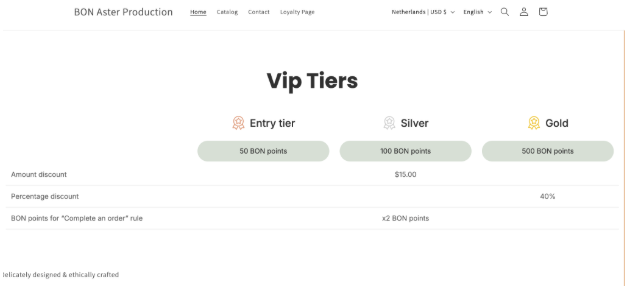
VIP Tier section
Referral Program section
Here are the detailed steps to add:
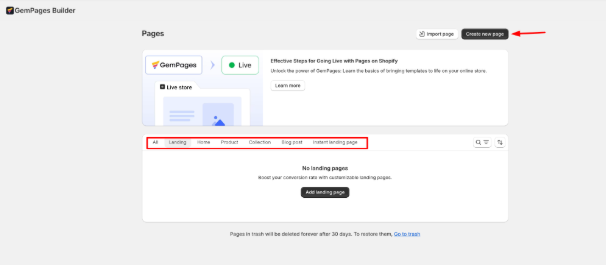
Open GemPages Pages > Create New Page or Select the pre-built template for different types of page.
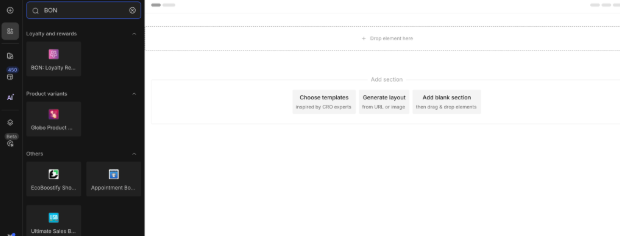
2. Goes to Apps Section
3. Select BON Loyalty: Find and select the ‘BON Loyalty’ app integration.
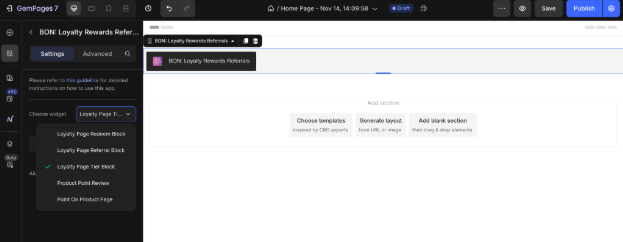
4. Drag-and-Drop: Drag the desired loyalty element (e.g., “VIP Tier Section”) onto your page layout.
5. Automatic Sync: The displayed information (points, tiers, text) will automatically sync with the settings you have configured inside your BON Loyalty application.
II. Adding a Loyalty Widget CTA on Product Pages
With a view to provide a seamless shopping experience for customers, this feature allows you to insert a dedicated Call-to-Action (CTA) link on your product pages built with GemPages.
NOTE: To enable this extension, you will need to subscribe to the Growth plan or higher in BON Loyalty
1. Goal
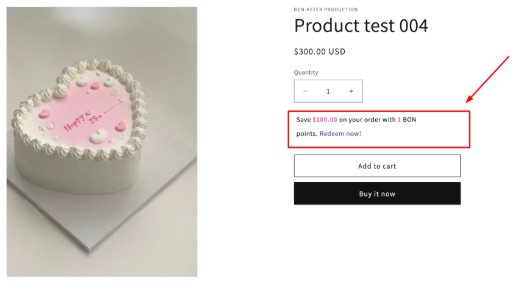
Inserting a dynamic message and link on the product detail page to inform customers about the points they will earn for that product, improving conversion by highlighting rewards.
2. Step-by-Step Implementation
Edit Product Page Template: In GemPages, open the Product Page template or a specific product page you wish to modify.
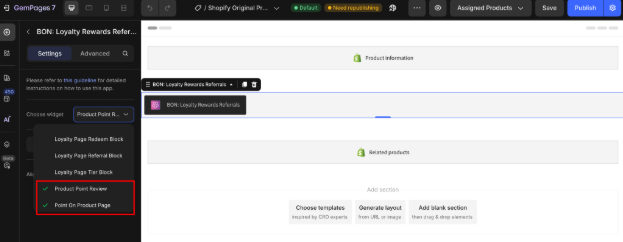
Then, in the Apps section > BON Loyalty > Select Points On Product Page.
NOTE: You must activate this feature in BON Loyalty to display this extension on your product page.
Save and Publish: Save the changes in GemPages and publish the page to allow the extension live on your storefront.