Turn daily visits into loyal customers: Introducing daily check-ins
Boost customer engagement and retention with points for daily check-in
NOTE: This feature is available from the Growth plan and higher. Check out our Pricing plans for more details.
Introduction
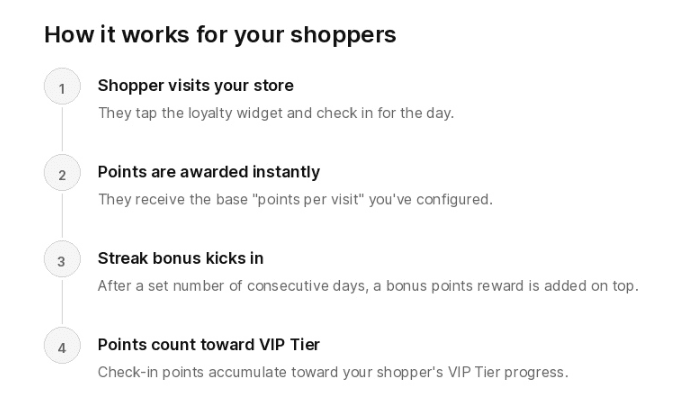
Keeping customers coming back between purchases is one of the hardest challenges in e-commerce. With our new feature – Daily Check-in, it gives shoppers a simple reason to visit your store every day, and rewards them for doing it. The more consecutive days they check in, the bigger the bonus rewards, creating a habit loop that builds loyalty even when they’re not buying.
How it works
To configure points for daily check-in, navigate to Earn points > Customer engagement. Click onto the rule’s name Daily check-in.
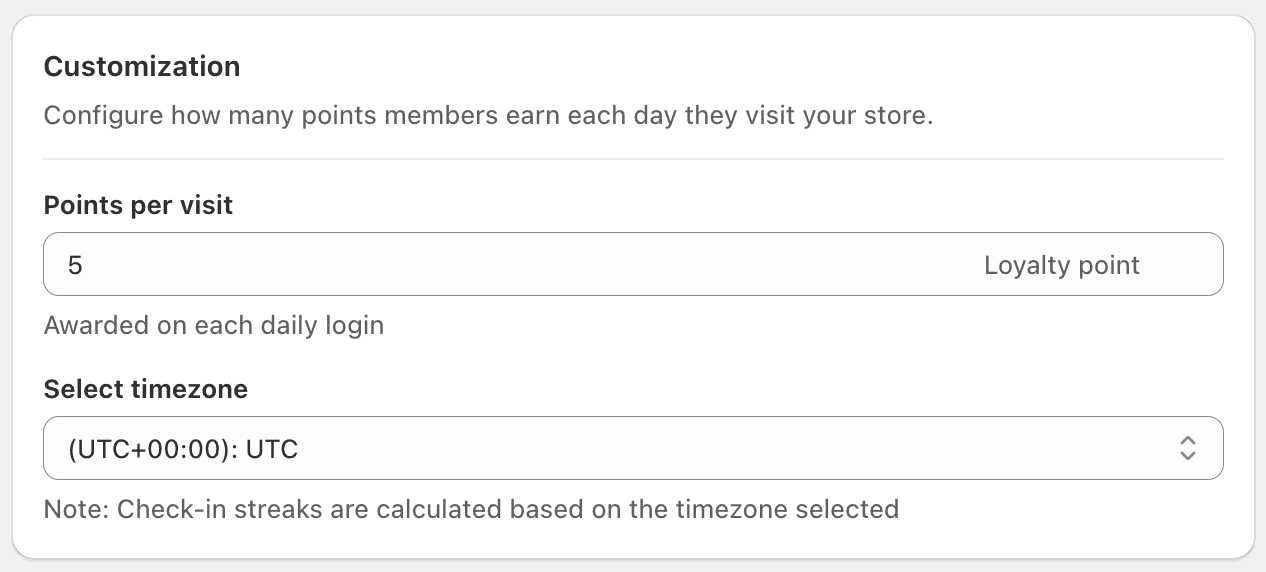
To set up how many points customers receive when they visit your store, go to the Customization section.
NOTE:
Points per visit input field accepts whole numbers only. Decimals will not save.
You cannot select multiple timezones. We recommend choosing the timezone of the market where your business is operating.
A valid streak is recorded from 0:00 of the previous day to 11:59 PM of the next one.
Points are awarded only when the rule status is active.
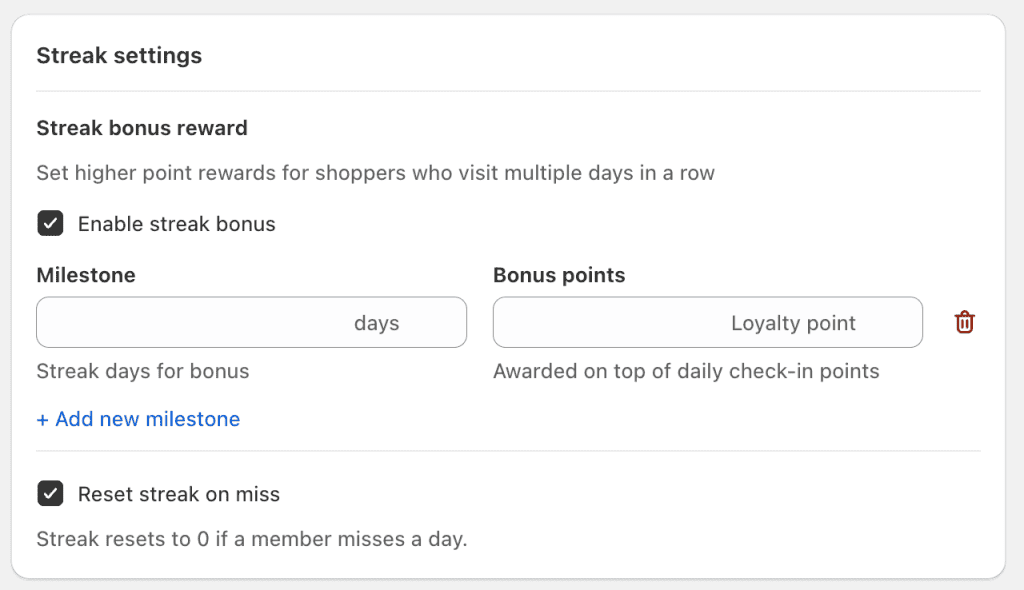
To encourage consecutive visits, add some streak bonus when customers constantly check-in for 7 days, 14 days, 30 days, etc.
Go to Streak settings section and setup your bonus:
NOTE: To avoid shoppers over-earning points from logging in, you can set a monthly earning cap, which is the maximum amount of points a shopper can earn from check-ins per month. This amount should be greater than your points per visit.
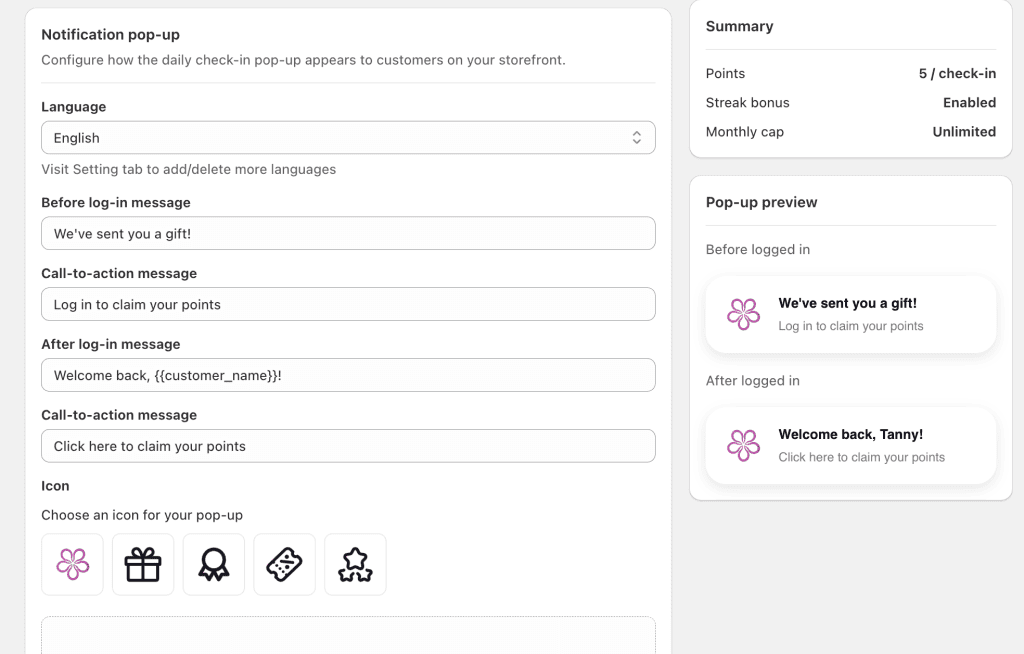
Once your rule is ready, it’s time to introduce it to your customers. Enable the notification pop-up on your storefront, and customize the design so it matches your branding.
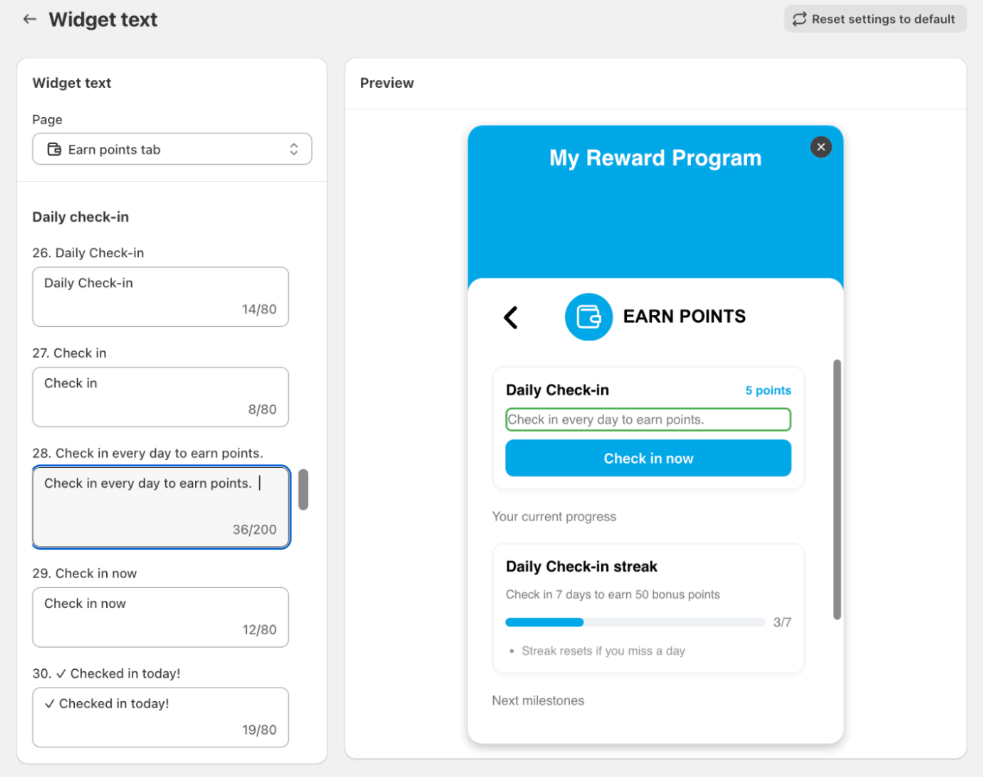
To customize the display content > Go to Widget texts > Select ‘Earn points tab’ from the drop-down selection.
Scroll down to input box number 26 -> All texts of the Daily check-in rule can be located there.
For the Loyalty Page, select Displayed texts from the drop-down menu for pages. Next, scroll down to find all the text boxes under the section named Daily check-in.
NOTE: These texts are displayed after customers logged into your store
An instruction for your customers
Use this flow diagram to explain how this rule works for your customers: