Integrate with Klaviyo

BON x Klaviyo integration

Learn how to integrate BON with Klaviyo and how to set up marketing campaigns in Klaviyo using BON’s attributes

NOTE: This feature is available on the Basic plan and higher. Check out our Pricing plans for more details!

Introduction

Klaviyo is a widely used email marketing platform that integrates well with Shopify. With BON x Klaviyo integration, it allows you to leverage the power of email marketing to enhance customer loyalty, increase repeat purchases, and create a more personalized experience for your customers.

Integration requirements

Before being able to customize, your store must meet all of these requirements:

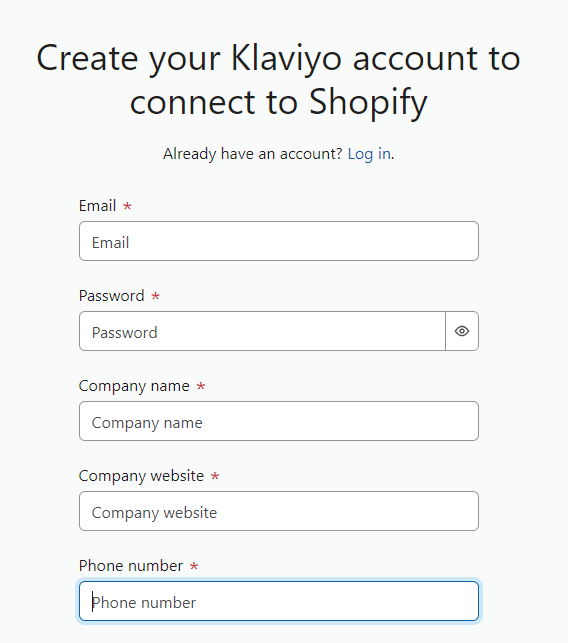
  • You already have an active account on Klaviyo:
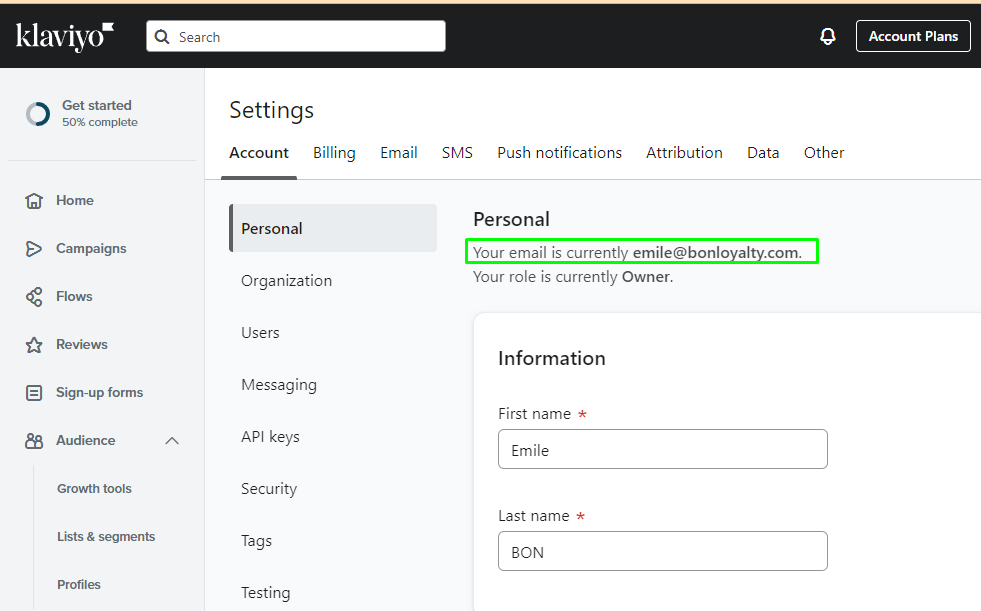
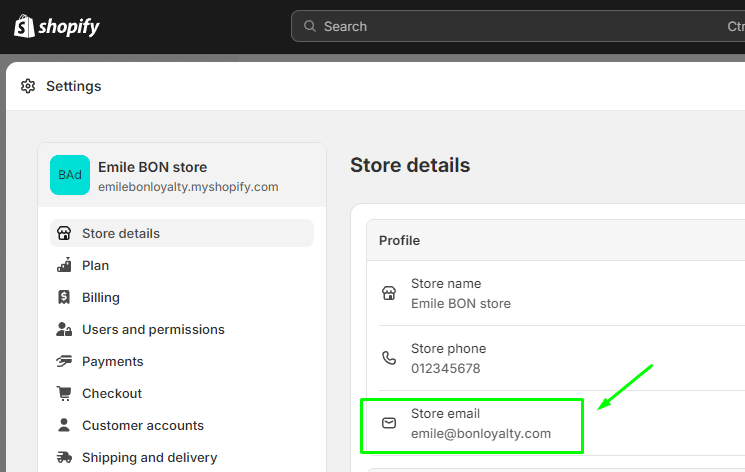
  • Your Klaviyo account email must match your Shopify store’s default email.

IMPORTANT NOTE: Each Klaviyo integration can only integrate with one store. Data from that store will sync to Klaviyo, and BON cannot distinguish between stores if multiple stores share one Klaviyo account. To avoid data becoming convoluted and ensure accurate data syncing, please use a separate Klaviyo account for each store.

BON x Klaviyo integration instruction

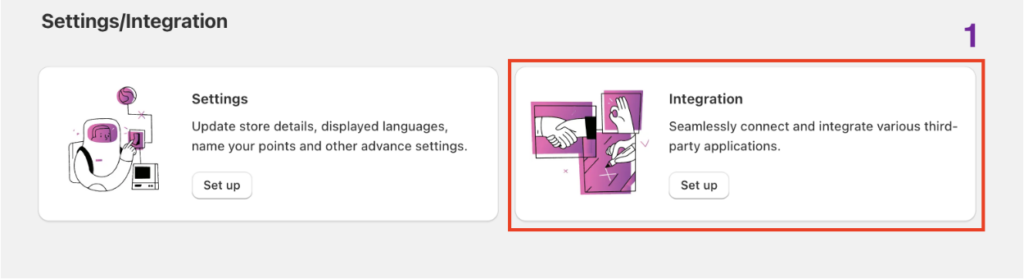
Step 1: To start your integration, go to the Settings tab in BON Loyalty > Select ‘Set up‘ for the Integrations tab.

integration-tab

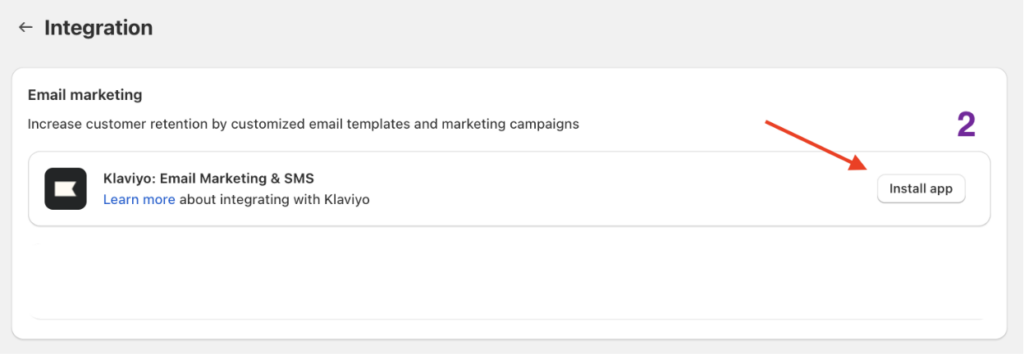
Step 2: Once you are in, you’ll find Klaviyo in the Email marketing section.

klaviyo-install

Step 3: Once you click ‘Install app‘, you’ll be taken to Klaviyo app listings for detailed information regarding features and users’ reviews.

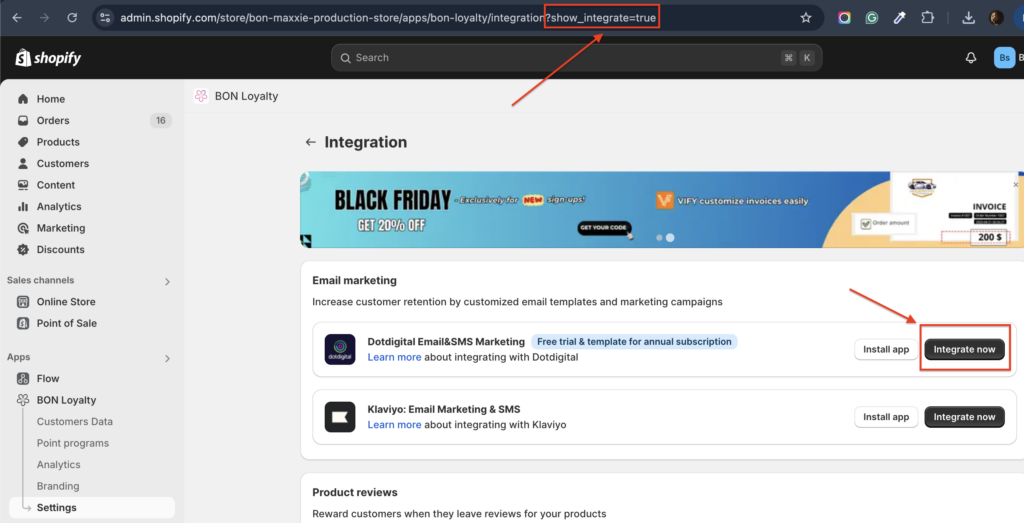
Step 4: To integrate, please input this attribute ?show_integrate=true in the URL > Press ‘Enter‘ to activate the ‘Integrate now‘ button.

klaviyo-integrate-now

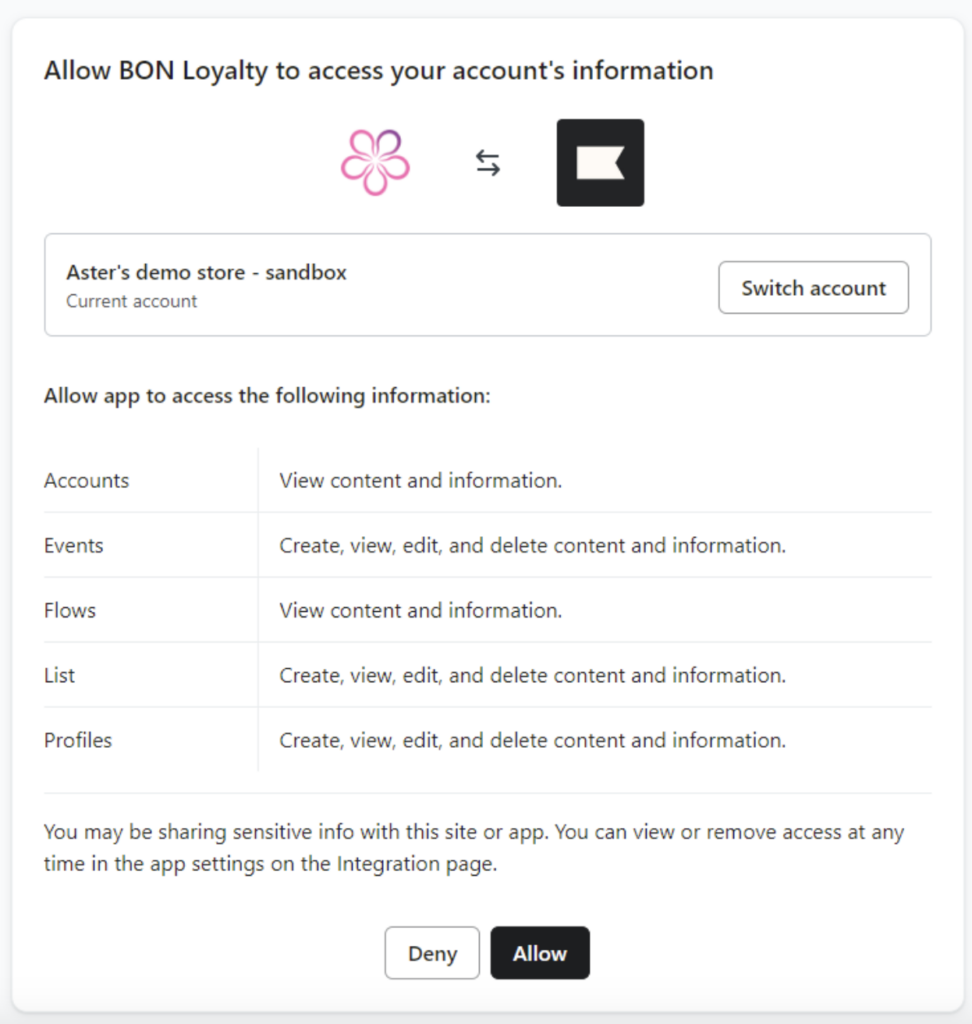
Step 5: Once you click ‘Integrate now‘, you will be taken to Klaviyo. Here, please review the request data form, then click ‘Allow‘ to complete this integration.

Once you select ‘Allow‘, all data will be synced automatically from BON Loyalty to your Klaviyo account. The synced data will include:

  • Point balances
  • Referral URLs
  • Customers’ tiers
  • Birthdays
  • Customers’ status (included/excluded)
  • Phone numbers
accept-data-access

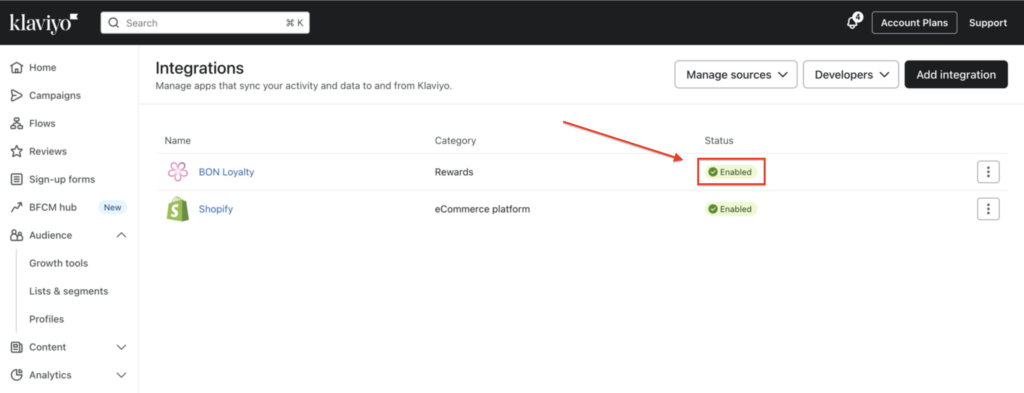
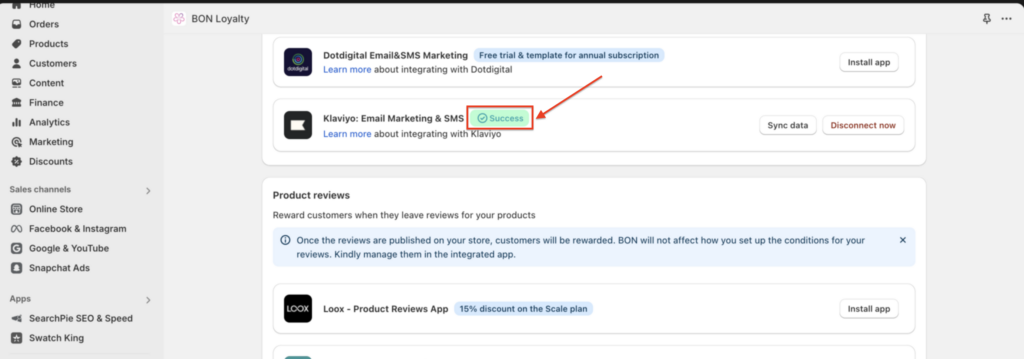
If you follow all the steps, and Klaviyo displays the status as ‘Enabled‘ status on Klaviyo’s end along with the ‘Success‘ status next to the ‘Sync Data’ button on BON’s end, the integration process will be successfully completed.

BON-in-Klaviyo
Klaviyo-in-BON

How to implement BON's data in the Klaviyo app

  A. Customize email contents with BON Loyalty’s attributes

After the data in BON has been synced to Klaviyo successfully, now you can use loyalty program data in your email campaign.

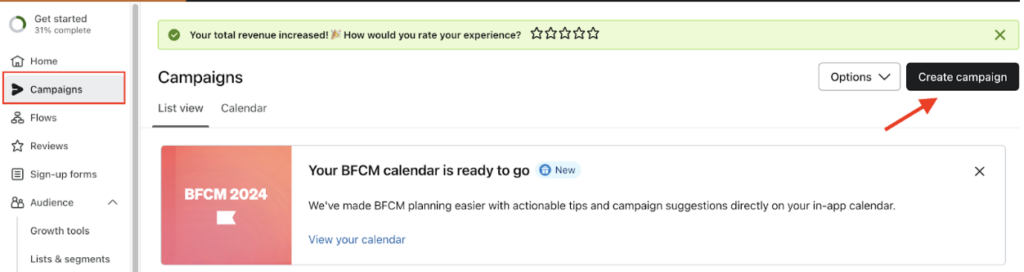
  • Go to your Klaviyo app > Select ‘Campaign‘ > Hover over an existing campaign and choose “Edit campaign” or create a new one:
campaign
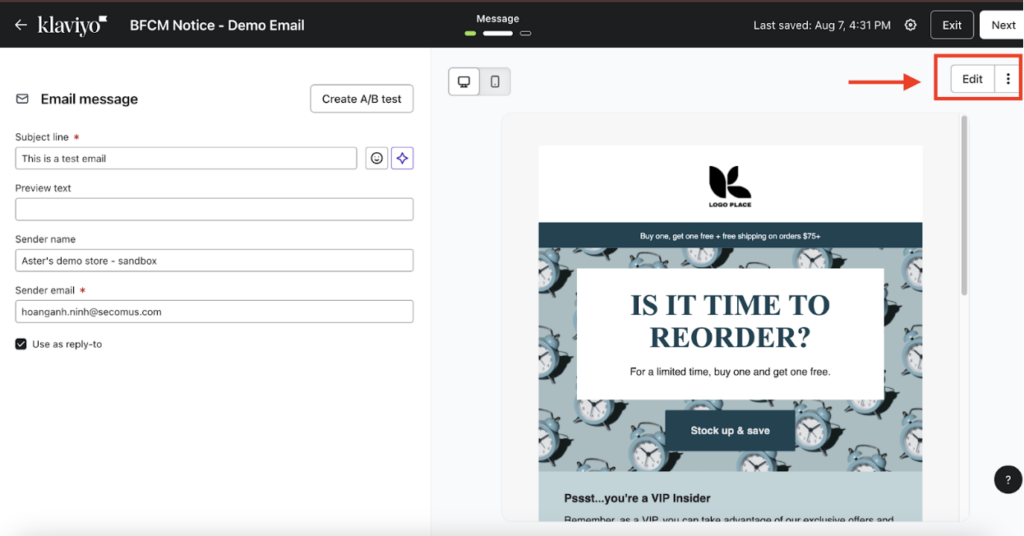
  • Click ‘Edit’
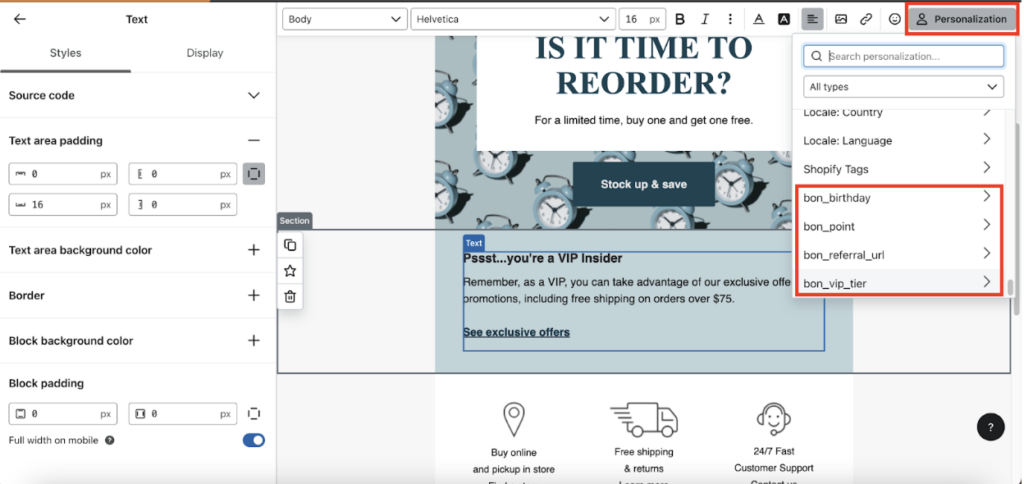
  • Click on any text section available > select Personalization > scroll down to find 4 options to insert BON’s loyalty data.

  B. Managing customer data with lists and segments

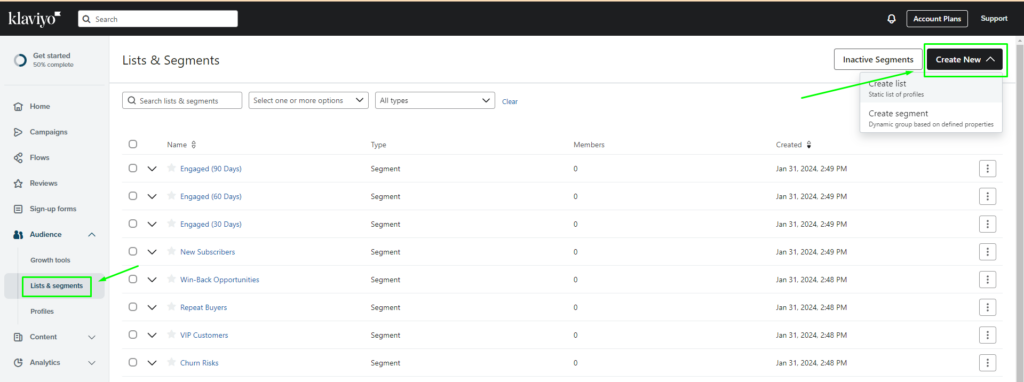
  • In the Klaviyo app, you can also create and utilize lists and segments. Using data from loyalty programs such as BON can help you target specific groups of subscribers with tailored email campaigns.
  • In the Audience section, choose ‘Lists & segments‘ > Select ‘Create New
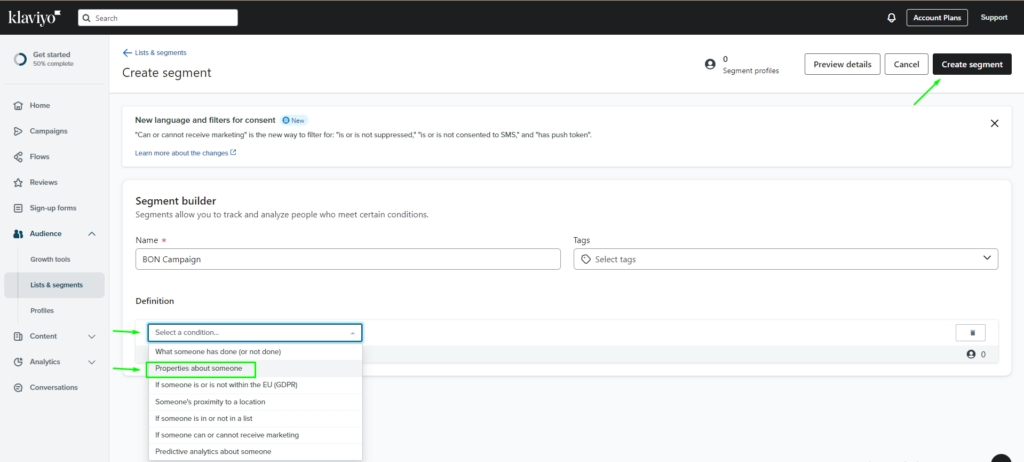
  • At the Definition segment, click ‘Select a condition‘ > Choose ‘Properties about someone
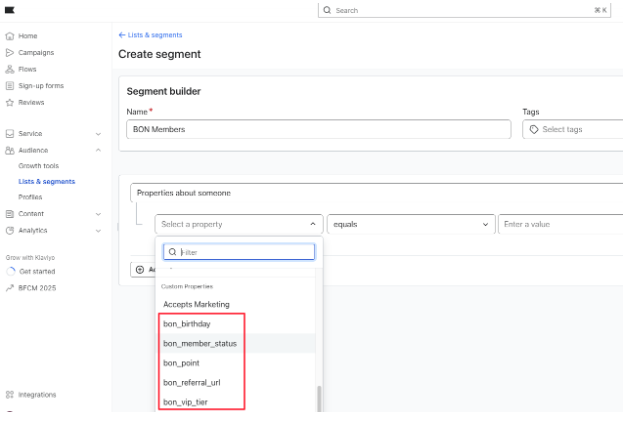
  • Click on the Dimension drop-down menu, and scroll down to find the 4 data attributes from BON Loyalty.

  C. Use event data to personalize email and SMS flows

With BON and Klaviyo integration, you can select BON’s events to trigger the automated email flows in Klaviyo. Learn more about How to use custom events to set up flow in Klaviyo HERE.

Create a metric-triggered flow in Klaviyo that starts when a customer takes an action within your program.

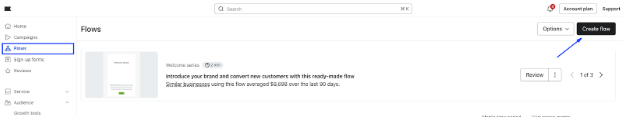
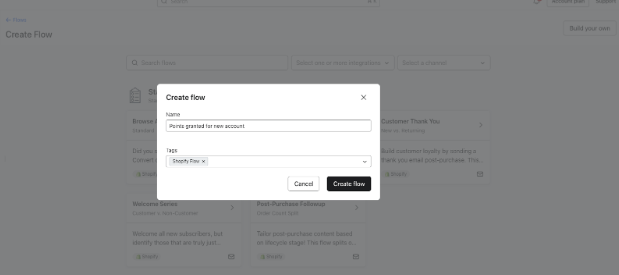
1. From your Klaviyo account, go to Flows. Click Create flow > Build your own.

2. Enter the name of your new flow in the pop-up. Optionally, add the tags to organize your flows and click Create flow.

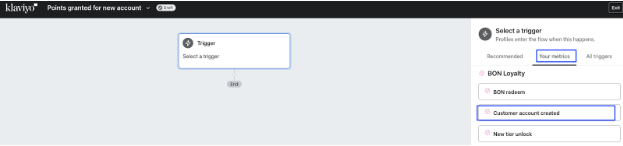
3. The flow builder will ask you to select a trigger. Click Your metrics > BON Loyalty. Search for the preferred BON event on the list. In this example, we will add ‘Customer account created’.

4. Click Save and confirm your trigger selection by clicking Confirm and save.

5. Drag and drop your preferred actions, timing, and logic boxes to the flow.

6. Once you finish with the flow, click Review and turn on to set your flow live or schedule it.

Lists of triggered events:

Actions

Events name in Klaviyo

Customer creates new account/signs up the loyalty program

Customer account created

Order is placed and fulfilled

Points Earned on Order

Customers exchange their points for discounts

Points Redeemed

Customers receive reward on their birthday

Birthday rewards

When customer’s tier moves to a lower one

Tier downgrade

When customers achieves a new, higher tier

New tier unlock

When customer completes a streak of orders

New streak unlock

When the referred friend successfully sign up via referral link

Referrer notice

When the referred friend’s reward is sent.

Referred friend notice

Was this guide helpful?